
Shopify Speed Optimization: 18 Techniques to Boost Store Performance (2026)
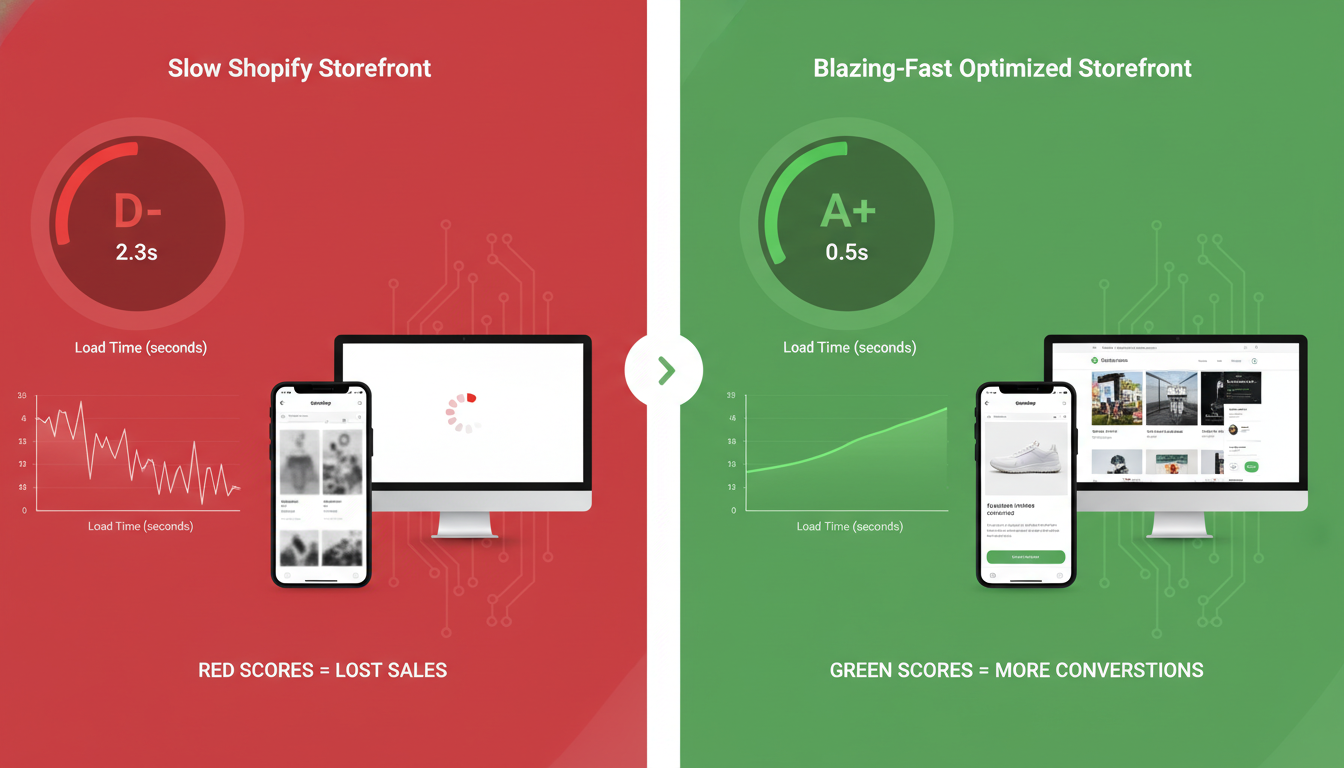
Your Shopify store is losing money right now if it takes more than 3 seconds to load. A 1-second delay in page load time reduces conversions by 7% (Akamai), and Google’s Core Web Vitals have been a confirmed ranking factor since 2021 — which means slow stores get buried in search results before a single customer ever sees your product. With Shopify powering over 4.8 million active stores globally as of 2026, the competition for page-one real estate and shopper attention is fiercer than ever. Shopify speed optimization is no longer a technical nice-to-have; it’s a direct revenue lever you control.
- The exact Shopify Admin steps to audit and reduce render-blocking scripts and third-party app bloat
- How to pass Google’s Core Web Vitals (LCP, INP, CLS) for your Shopify theme in 2026
- Image compression, lazy loading, and CDN strategies that cut load times by 40–60%
- A benchmark table comparing average Shopify theme performance scores across popular themes
- Answers to the most-searched Shopify questions, including whether Shopify is still worth it in 2026
Why Shopify Speed Optimization Directly Impacts Revenue
Page speed isn’t a vanity metric — it’s a revenue metric. Walmart found that every 1-second improvement in load time increased conversions by 2%, and for a store doing $500K/year, that’s $10,000 in recovered revenue from a single optimization pass. Google’s PageSpeed Insights scores your site from 0–100, but the number that actually matters is your Largest Contentful Paint (LCP): it should be under 2.5 seconds on mobile.
Shopify’s SaaS infrastructure gives you a head start — their global CDN, automatic SSL, and server-level caching are baked in. But themes, apps, and merchant-added scripts are where most stores bleed speed. The average Shopify store loads 68 third-party requests on its homepage alone (HTTP Archive, 2025), each one a potential bottleneck.
Shopify Speed Benchmark: How Does Your Store Compare?
Before you start optimizing, you need a baseline. Run your store through Google PageSpeed Insights and Shopify’s built-in Online Store Speed report (found at Online Store → Themes → View report). Here’s how common Shopify themes score out of the box in 2026:
| Theme | Mobile PageSpeed Score (Avg.) | LCP (Avg.) | Total Blocking Time (Avg.) | Price |
|---|---|---|---|---|
| Dawn (Shopify Free) | 68–75 | 2.8s | 180ms | Free |
| Prestige (Maestrooo) | 55–65 | 3.4s | 310ms | $380 |
| Impulse (Archetype) | 58–67 | 3.1s | 270ms | $380 |
| Turbo (Out of the Sandbox) | 62–70 | 2.9s | 230ms | $425 |
| Craft (Shopify Free) | 70–78 | 2.6s | 160ms | Free |
| Custom Headless (Hydrogen) | 85–95 | 1.4s | 60ms | Custom |
Scores based on unmodified theme installs tested via Google PageSpeed Insights, Q1 2026. Real-world scores vary with installed apps and content.
If you’re on Prestige or Impulse and running 10+ apps, there’s a strong chance your mobile score is below 50 — which puts you in the bottom quartile of Shopify stores and actively hurts your Google Shopping and organic rankings.
How to Speed Optimize in Shopify?
This is the most-searched question on the topic, and the honest answer is that Shopify speed optimization requires attacking the problem from four angles simultaneously: images, JavaScript, apps, and theme code. Here’s the full tactical breakdown:
1. Compress and Convert All Product Images to WebP
Images are consistently the single largest contributor to slow load times on Shopify stores. Unoptimized images account for 60–70% of total page weight on the average Shopify product page (HTTP Archive, 2025). Shopify natively serves WebP format when browsers support it, but only if your images are uploaded at a reasonable size.
- Resize all product images to a maximum of 2048×2048px before uploading — Shopify upscales on demand but doesn’t downscale efficiently on all devices.
- Use TinyIMG or Crush.pics (both available in the Shopify App Store) to bulk-compress your existing image library without quality loss.
- For theme section images (banners, hero images), compress manually using Squoosh.app before uploading and target file sizes under 150KB for desktop hero images.
2. Enable Native Lazy Loading for Below-the-Fold Images
In your theme’s Liquid files, ensure all <img> tags that appear below the fold include loading="lazy". In Dawn and Craft, this is already enabled by default. For custom or older themes, go to Online Store → Themes → Edit code and search for image tags in sections/ files. Add loading="lazy" to any image not in the first visible viewport.
3. Audit and Remove Unused Apps
Every Shopify app you install — even if it’s “paused” — can inject JavaScript and CSS into your storefront. Each additional render-blocking script adds an average of 200–500ms to your Time to Interactive (Google Lighthouse documentation). Go to Apps → App and sales channel settings and uninstall any app you haven’t actively used in the past 30 days. Then check your theme code: many uninstalled apps leave orphaned script tags in theme.liquid. Search for the app’s name in your code editor and remove any lingering snippets.
4. Defer Non-Critical JavaScript
Render-blocking JavaScript forces the browser to pause HTML parsing until a script is executed. For Shopify themes, go to Online Store → Themes → Edit code → Layout → theme.liquid and identify any <script> tags loaded in the <head> that aren’t critical to first paint. Add defer or async attributes to non-essential scripts. Be cautious with Shopify’s core scripts (shopify.js, cart API scripts) — only defer scripts you’ve confirmed are non-blocking safe.
5. Use a Font Loading Strategy That Doesn’t Block Rendering
Custom fonts are a hidden speed killer. If you’re loading Google Fonts or Adobe Typekit via a standard <link> tag, you’re likely causing a Flash of Invisible Text (FOIT). Switch your font loading to use font-display: swap in your CSS. In your theme code, find the CSS file that imports your fonts and add the swap directive. Alternatively, self-host your fonts by downloading them and uploading to Content → Files in Shopify Admin, then referencing them locally in your theme CSS.
6. Minimize Shopify Section and Block Bloat
Every section on your homepage adds render weight. Audit your homepage via Online Store → Themes → Customize and remove any sections that aren’t driving measurable engagement. Use Hotjar heatmaps to verify which sections users actually scroll to — sections below the fold that no one reaches are pure load-time dead weight.
7. Implement a Shopify-Compatible CDN for Third-Party Resources
Shopify’s built-in CDN (powered by Fastly) handles your store assets excellently. But if you’re loading resources from third-party origins — Google Tag Manager, Meta Pixel, Klaviyo tracking scripts — those have their own latency. Use Google Tag Manager as a single container for all third-party marketing pixels, then load GTM with the async attribute. This consolidates external calls and reduces DNS lookup time across multiple domains.
8. Optimize Your Shopify Storefront with Predictive Prefetching
Shopify’s Dawn and newer themes support <link rel="prefetch"> directives, which instruct the browser to fetch the next likely page before the user clicks. For product collection pages, prefetching the first 3 product page URLs on hover can make navigation feel near-instant. The app Flying Pages automates this for Shopify with zero code required.
9. Reduce Liquid Template Render Time
Complex Liquid logic — nested loops, multiple where filters, or large metafield lookups — can slow your server-side render time (TTFB). Use Shopify’s Theme Inspector (a Chrome extension by Shopify) to identify which Liquid sections are taking the longest to render server-side. Sections taking over 50ms are candidates for refactoring, typically by reducing loop complexity or caching output with {% capture %} blocks.
10. Switch to Shopify Hydrogen for Maximum Speed (Advanced)
If you’re doing over $1M/year and your store architecture is holding back performance, Shopify Hydrogen — Shopify’s React-based headless framework — is the highest-ceiling solution. Hydrogen stores delivered via Oxygen (Shopify’s edge hosting) consistently achieve mobile PageSpeed scores of 85–95 and LCP values under 1.5 seconds. This is a significant development investment (typically $15,000–$50,000+), but for high-traffic stores where even a 1% conversion rate improvement generates six figures, the ROI is real.
18 Specific Shopify Speed Optimization Techniques at a Glance
Here’s the complete tactical checklist — each item is independently actionable:
- Convert images to WebP and compress to under 150KB for hero images using TinyIMG or Crush.pics
- Enable lazy loading on all below-fold images with
loading="lazy" - Uninstall unused apps and remove orphaned code from
theme.liquid - Defer non-critical JavaScript with the
deferattribute in theme.liquid - Set font-display: swap and self-host custom fonts where possible
- Audit homepage sections using Hotjar and remove non-engaging blocks
- Consolidate tracking pixels under a single Google Tag Manager container
- Add predictive prefetching with Flying Pages or native link prefetch directives
- Optimize Liquid render time using Shopify Theme Inspector
- Reduce CSS payload by removing unused styles (PurgeCSS or manual audit)
- Use Shopify’s built-in image transformation (
| image_url: width:filter) to serve correctly sized images per device - Enable Shopify’s checkout extensibility to keep checkout on Shopify’s fast infrastructure rather than redirect apps
- Limit collection page product counts — render 24 products max per page to reduce initial DOM size
- Test with Google PageSpeed Insights monthly and track Core Web Vitals in Google Search Console → Core Web Vitals
- Use Google Analytics 4 engagement rate (not bounce rate) to correlate speed improvements with behavioral change
- Implement critical CSS inlining for above-the-fold styles to eliminate render-blocking stylesheets
- Reduce third-party review widget scripts — Okendo’s performance-optimized widget loads asynchronously and is faster than Yotpo’s legacy implementation
- Migrate to Hydrogen/Oxygen if you’re a $1M+ store hitting a ceiling on Liquid-based performance
Is Shopify Still Worth It in 2026?
This question comes up constantly, especially as WooCommerce, BigCommerce, and newer platforms like Fourthwall and Shopline compete for merchant attention. The short answer: yes, Shopify is still the strongest all-around ecommerce platform for most merchants in 2026 — but with important caveats worth understanding.
Shopify processed over $300 billion in gross merchandise volume (GMV) in 2025 (Shopify Inc. Q4 2025 earnings), making it the largest third-party commerce infrastructure on the planet. Their continued investment in platform speed — including the rollout of Checkout Extensibility, the deprecation of checkout.liquid for slower custom builds, and expanded Oxygen edge hosting — shows a company actively solving the performance problem rather than ignoring it.
Where Shopify earns its keep in 2026:
- Ecosystem maturity: Over 8,000 apps in the App Store, deep integrations with Klaviyo, Rebuy, Okendo, and every major 3PL
- Checkout conversion rates: Shop Pay achieves a 50% higher checkout-to-order rate versus guest checkout (Shopify internal data, 2025), and it’s exclusive to Shopify merchants
- Platform reliability: 99.99% uptime SLA on Shopify Plus, with infrastructure that auto-scales during Black Friday/Cyber Monday peaks
- AI-native tooling: Shopify Magic (AI product descriptions, image generation) and Sidekick (AI merchant assistant) reduce operational overhead
- B2B capabilities: Shopify’s native B2B features on Plus have matured significantly, eating into territory previously owned by Magento
Where Shopify has real limitations:
- Transaction fees: If you’re not on Shopify Payments, you pay 0.5%–2% per transaction on top of payment processor fees — this stings at scale
- Customization ceiling on standard Liquid: Complex multi-region, multi-currency, or multi-storefront architectures require Shopify Plus ($2,500+/month) or headless builds
- App dependency: Many critical features (subscriptions, bundles, advanced filtering) require paid apps that compound your monthly costs
For a store doing $50K–$5M/year with a product-focused business model, Shopify remains the default correct answer in 2026. The platform’s speed investments and checkout performance advantages alone justify the subscription cost when measured against conversion rate outcomes.
What Is the $200 Threshold on Shopify?
The “$200 threshold on Shopify” refers to a feature within Shopify Payments’ fraud protection and automatic review settings, but it’s more accurately associated with two distinct Shopify mechanisms that merchants commonly conflate:
1. Shopify Payments Chargeback Protection Threshold
Shopify offers chargeback protection on eligible orders processed through Shopify Payments. In many regions, orders under $200 USD that pass Shopify’s fraud analysis are eligible for automatic chargeback coverage — meaning Shopify absorbs the loss if a chargeback is filed. Orders above $200 require manual review and don’t qualify for automatic protection. This threshold exists because fraud risk and dispute complexity scale with order value. You can configure fraud filter rules at Settings → Payments → Shopify Payments → Manage → Fraud protection.
2. Automatic Order Fulfillment Threshold
Some merchants set up automatic fulfillment rules that trigger differently based on order value. While $200 isn’t a Shopify-mandated cutoff here, many merchants use it as a self-imposed threshold: orders under $200 auto-fulfill, orders over $200 require manual review before fulfillment. You can configure this at Settings → Checkout → Order processing → Automatically fulfill order’s line items and combine it with fraud analysis filters.
3. Context: PayPal and Third-Party Payment Thresholds
It’s worth noting that if your store uses PayPal as an additional payment gateway, PayPal’s own seller protection policies have order value tiers that can interact with Shopify’s fraud settings. Some merchants interpret PayPal’s seller protection ceiling for certain transaction types as a “Shopify” threshold — it isn’t, but the confusion is common.
The practical advice: if you’re seeing unusual behavior around $200 order values — holds, extra verification prompts, or fulfillment delays — check your fraud filter settings in Shopify Payments and your PayPal account settings simultaneously. Use Google Analytics 4 to segment revenue by order value brackets and identify if you’re losing conversion rate at a specific price point, which sometimes reveals a friction point in the checkout flow tied to these thresholds.
Does Kim Kardashian Use Shopify?
This is one of the more searched celebrity-commerce questions, and the answer is: yes — SKIMS, Kim Kardashian’s shapewear brand, has used Shopify as a core part of its commerce infrastructure. SKIMS launched in 2019 and quickly became one of the fastest-growing DTC brands in the United States, reaching a $4 billion valuation by 2023.
SKIMS operates a high-volume Shopify Plus store capable of handling enormous demand spikes — the brand famously sells out limited collections within minutes of launch, which requires the kind of infrastructure resilience that Shopify Plus’s auto-scaling provides. Their store architecture combines Shopify Plus on the backend with a heavily customized front-end experience, incorporating features like:
- Real-time inventory countdown timers to drive urgency on high-demand product drops
- Integrated size recommendation tools that reduce return rates — a major conversion optimization for intimates and shapewear
- Shop Pay as a primary accelerated checkout option, driving higher mobile conversion rates
- Klaviyo for post-purchase email flows and VIP customer segmentation
SKIMS is one of several high-profile celebrity brands that have chosen Shopify Plus over enterprise alternatives like Salesforce Commerce Cloud or Magento. Kylie Jenner’s Kylie Cosmetics (also Shopify Plus), Kanye West’s Yeezy supply store, and Snoop Dogg’s merchandise store have all used Shopify infrastructure at various points. The pattern is consistent: when a celebrity brand needs to launch fast, scale instantly, and maintain a premium storefront experience without building custom infrastructure from scratch, Shopify Plus is the default choice.
What’s instructive for your store from the SKIMS example isn’t the celebrity association — it’s the architecture philosophy. SKIMS invests heavily in mobile-first UX, accelerated checkout, and post-purchase retention flows (Klaviyo email + SMS). These are the same levers available to a $200K/year Shopify merchant at a fraction of the cost. The tools are democratized; the strategy is the differentiator.
Measuring the Impact of Your Shopify Speed Improvements
Optimization without measurement is guesswork. After implementing any of the 18 techniques above, track these metrics consistently:
- Google PageSpeed Insights score (mobile) — run weekly for the first month post-optimization
- Core Web Vitals in Google Search Console — navigate to Search Console → Core Web Vitals to see LCP, INP, and CLS status across all URLs
- Shopify Online Store Speed report — Online Store → Themes → View report — this gives you a Shopify-specific score and compares you to similar stores
- GA4 Engagement Rate by Page — in Google Analytics 4, go to Reports → Engagement → Pages and screens and filter by your highest-traffic pages. Compare engagement rate before and after optimization.
- Checkout Conversion Rate — in Shopify Admin, Analytics → Reports → Checkout funnel — this is your north star metric. Speed improvements should show up here within 2–4 weeks as statistical significance builds.
Set a 90-day improvement target: a well-executed optimization project should move your mobile PageSpeed score from below 50 to above 65, reduce LCP by at least 0.8 seconds, and improve checkout conversion rate by 5–15% depending on how much friction existed pre-optimization. These aren’t aspirational numbers — they’re typical outcomes reported by Shopify development agencies working on mid-market stores.
The Compounding Effect: Speed + SEO + Conversion Rate
Shopify speed optimization doesn’t produce results in isolation — it creates a compounding flywheel. Faster load times improve your Core Web Vitals scores, which strengthens your Google organic rankings. Higher rankings bring more qualified traffic. Faster pages convert that traffic at a higher rate. Higher conversion rates improve your Google Ads Quality Score, which lowers your cost-per-click. Lower CPC means more efficient paid acquisition, which feeds more data into your Klaviyo flows and Rebuy recommendation engine.
A single percentage point improvement in mobile conversion rate on a $1M/year store generates $10,000 in incremental annual revenue — and speed is consistently the highest-ROI lever to move that number, ahead of new product launches, ad spend increases, or email list growth. The stores that win in 2026 aren’t the ones with the biggest ad budgets; they’re the ones where every millisecond has been deliberate.
Start with a PageSpeed Insights audit today, identify your single biggest bottleneck — almost always images or app script bloat — and fix that one thing first. The compounding rewards follow.