Shopify CRO Audit Checklist: 27 Fixes to Boost Revenue (2026)
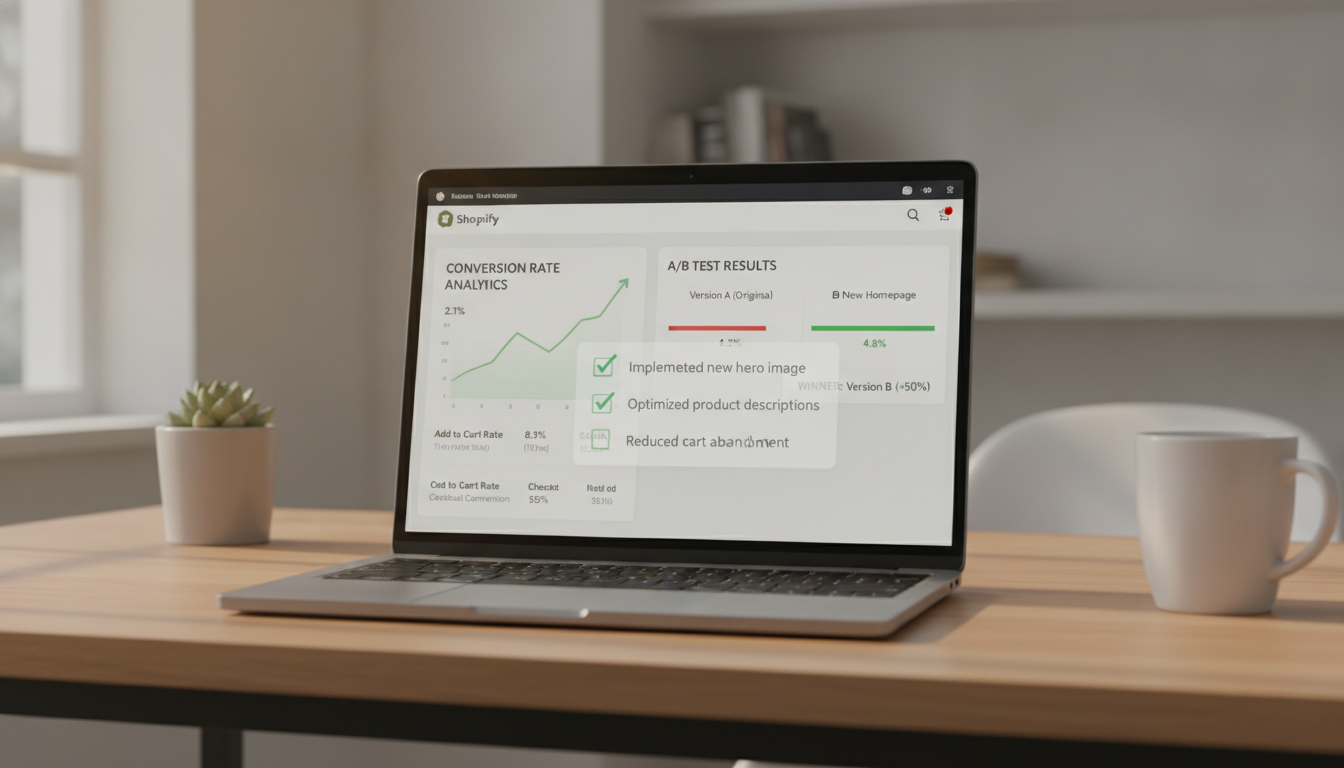
Your Shopify store is leaking revenue right now. The average Shopify store converts at just 1.4% — while the top 20% of stores convert at 3.7% or higher (Littledata, 2025). That gap isn’t luck. It’s the result of systematic conversion rate optimization work that most store owners never do because they don’t know exactly where to look.
This Shopify CRO audit checklist gives you 27 specific, prioritized fixes — ordered by revenue impact — that you can start executing today. No vague advice, no generic “improve your copy.” Just exact Shopify Admin paths, specific tools, and the benchmarks you need to know if you’re winning or losing.
- Most Shopify stores lose 68–80% of potential revenue at the cart and checkout stages — and these are the fastest wins to fix.
- Page speed alone can account for a 7% drop in conversions for every 1-second delay (Google, 2025).
- A structured CRO audit covers five layers: technical performance, UX & navigation, product pages, cart & checkout, and post-purchase flows.
- Tools like Hotjar, GA4, PageSpeed Insights, Klaviyo, and Rebuy each serve a distinct audit function — using all five gives you the full picture.
- Stores that run quarterly CRO audits report 15–40% higher annual revenue growth than those that don’t (Baymard Institute, 2025).
What Is a Shopify CRO Audit Checklist?
A Shopify CRO audit checklist is a structured diagnostic process that evaluates every stage of your store’s conversion funnel — from the moment a visitor lands on your homepage to the confirmation page after a purchase. It identifies the specific friction points, broken flows, and missed opportunities that prevent browsers from becoming buyers.
The word “checklist” matters here. Unlike a general “CRO strategy,” an audit checklist is a repeatable, systematic review you run against defined benchmarks. Every item either passes or fails. You’re not brainstorming — you’re diagnosing.
A complete Shopify CRO audit covers five distinct layers:
- Technical Performance: Core Web Vitals, page speed, mobile rendering, broken links, and script bloat.
- UX & Navigation: Menu structure, search functionality, category page filtering, and mobile thumb-zone accessibility.
- Product Pages: Image quality, copy clarity, social proof density, urgency signals, and variant selector UX.
- Cart & Checkout: Cart abandonment triggers, checkout field count, payment method coverage, and trust signals at the point of purchase.
- Post-Purchase & Retention: Thank-you page upsells, email flow timing, loyalty program visibility, and review collection.
Each layer feeds the next. A store can have immaculate product pages but lose 70% of customers at a clunky, multi-step checkout. The audit finds those breaks before your revenue data does.
Why does this matter specifically for Shopify? Shopify’s platform gives you enormous flexibility — but that flexibility means the default setup is rarely the optimal setup. Themes ship with compromises. Apps add script bloat. Payment settings default to whatever Shopify recommends, not what your specific audience converts best on. The audit is how you reclaim that ground.
How to Fix Your Shopify CRO Audit: The 27-Point Checklist
Work through these in order. Items at the top deliver faster, broader revenue impact. Items further down are higher effort but compound over time.
Layer 1: Technical Performance (Items 1–6)
- Run PageSpeed Insights on your homepage, a collection page, and your top product page. Aim for a Largest Contentful Paint (LCP) under 2.5 seconds and a Total Blocking Time (TBT) under 200ms. Go to PageSpeed Insights → Enter URL → Mobile tab first. Most Shopify stores fail mobile — fix that before desktop.
- Audit your installed apps in Shopify Admin → Apps → Remove unused apps. Every inactive app that still loads scripts adds render-blocking time. Use Chrome DevTools → Network tab → filter by third-party scripts to quantify the damage.
-
Enable lazy loading on all images. In your theme’s
settings_schema.jsonor directly via Liquid, ensure images below the fold useloading="lazy". This alone can reduce initial page load by 30–40% on image-heavy collection pages. - Check for broken links and 404 errors. Use Google Search Console → Coverage → Not Found (404) report. Every broken link is a dead-end for both users and crawl budget. Redirect broken URLs via Shopify Admin → Online Store → Navigation → URL Redirects.
- Verify your store loads correctly on iOS Safari and Android Chrome. Use BrowserStack or your actual devices. Pay specific attention to sticky add-to-cart buttons — Shopify themes frequently break these on older iOS versions.
- Confirm Shopify Payments is enabled and Shop Pay is active. Go to Settings → Payments → Shopify Payments → Manage → Enable Shop Pay. Stores with Shop Pay enabled see an average 18% higher checkout conversion rate because it eliminates form-fill friction for returning users (Shopify, 2025).
Layer 2: UX & Navigation (Items 7–11)
- Audit your main navigation for depth. If a customer has to click more than 3 times to reach a product from the homepage, you’re adding friction. Flatten your navigation structure. Use Hotjar Heatmaps on your homepage to see which nav items actually get clicked — delete the rest.
- Test your site search with 10 real product queries. Go to Shopify Admin → Analytics → Search analytics and review your top search terms. If searchers can’t find products quickly, consider upgrading to a dedicated search app. Searchanise and Boost Commerce both offer semantic search that significantly outperforms Shopify’s native search for larger catalogs.
- Evaluate mobile thumb-zone accessibility. Primary CTAs (Add to Cart, Buy Now) must sit within the bottom 60% of the mobile screen. Use Google’s Mobile-Friendly Test to confirm. If your sticky ATC bar doesn’t appear on mobile product pages, fix this immediately — it’s one of the highest-ROI single changes a Shopify store can make.
- Check collection page filter performance. Shopify’s native filtering (enabled via Online Store → Themes → Customize → Collection Pages → Filters) works, but test it. If filters don’t dynamically update results without a page reload, you’re losing impatient shoppers.
- Measure your bounce rate by traffic source in GA4. Go to GA4 → Reports → Acquisition → Traffic Acquisition → Add secondary dimension: Session source/medium. Paid traffic bouncing above 60% signals a landing page mismatch. Organic traffic bouncing above 70% signals a content relevance problem.
Layer 3: Product Pages (Items 12–17)
- Audit your hero image quality and count. Your first product image must show the product in use (lifestyle shot), not just on white. Stores with 5+ product images convert 28% better than those with 1–2 images (Shopify Partner Blog, 2025). Add video if your product has a tactile or size-dependent selling point.
- Rewrite your product descriptions using the Problem-Feature-Benefit framework. Lead with the problem your buyer has. Name the specific feature that addresses it. Close with the tangible benefit. Every description should answer: “Why should I buy this instead of anything else?”
- Check your social proof density. You need reviews visible above the fold on every product page. Use Okendo or Judge.me to display star ratings directly under the product title. Products with 5+ reviews convert at 270% higher rates than products with zero reviews (Spiegel Research Center). If you have reviews but they’re buried, move them up in your theme’s section order.
- Add urgency signals where they’re honest. Low-stock counters (visible via Shopify Admin → Products → Inventory) are legitimate urgency triggers when stock genuinely is low. Countdown timers tied to shipping cutoffs convert well — but fake countdown timers destroy trust the moment a savvy shopper reloads the page.
- Audit your variant selector UX. Color swatches outperform dropdown selectors for apparel and accessories. Size selectors should show out-of-stock variants as greyed-out, not hidden. Hiding unavailable variants forces customers to wonder if their size exists, increasing abandonment.
- Check your Add to Cart button’s visual hierarchy. It must be the most visually dominant element on the page — higher contrast, larger, and above the fold on both desktop and mobile. If a secondary action (like “Save to Wishlist”) is the same size and color, fix it immediately.
Layer 4: Cart & Checkout (Items 18–22)
- Measure your cart abandonment rate. Set this up in GA4 → Explore → Funnel Exploration → Steps: View Cart → Begin Checkout → Purchase. The global average cart abandonment rate is 70.19% (Baymard Institute, 2025). If you’re above 75%, your checkout has a structural problem.
- Reduce checkout fields to the absolute minimum. Go to Settings → Checkout → Customer contact → Email only (not phone). Remove the “Company name” field unless B2B is core to your business. Every additional field reduces completion rates. Shopify’s one-page checkout (now default for most plans) is the right foundation — don’t override it with a multi-step custom checkout unless you have data justifying it.
- Audit payment method coverage. Go to Settings → Payments and confirm you have: Shop Pay, PayPal, Apple Pay, Google Pay, and at least one BNPL option (Afterpay, Klarna, or Affirm). BNPL adoption has grown 47% YoY among 25–44 year olds (KPMG, 2025). Not offering it means you’re losing a segment of buyers who won’t convert without installment options.
- Add trust signals at checkout. Use your theme’s checkout customization (Settings → Checkout → Customize on Shopify Plus, or checkout.liquid on eligible plans) to add: SSL badge, money-back guarantee icon, and a one-line shipping promise (“Ships in 1–2 business days”).
- Implement a cart abandonment email flow in Klaviyo. Your flow should have three emails: 1 hour after abandonment, 24 hours, and 72 hours. The first email should be simple — no discount, just a reminder. Reserve your discount (if you use one) for the third email. Cart abandonment emails generate an average $5.81 revenue per recipient (Klaviyo Benchmark Report, 2025).
Layer 5: Post-Purchase & Retention (Items 23–27)
- Audit your thank-you page for upsell revenue. The post-purchase page is the most underused real estate in Shopify. Use Rebuy’s post-purchase upsell widget or Shopify’s native post-purchase extensibility (Settings → Checkout → Post-purchase page) to offer a one-click upsell. Customers who just purchased are 60% more likely to buy a complementary product than cold visitors.
- Check your transactional email timing and content. Go to Settings → Notifications and review every automated email. Order confirmation emails have a 70%+ open rate — they’re prime real estate for cross-sells, referral program invites, and review requests.
- Set up a post-purchase review request flow in Klaviyo or Okendo. Trigger the flow 7 days after fulfilled delivery (not order date). A personalized, product-specific review request converts 3–4x better than a generic “leave a review” email.
- Measure your 30-day and 90-day repeat purchase rate in GA4 or your Shopify Analytics. Go to Shopify Admin → Analytics → Reports → Customer cohort analysis. If fewer than 20% of customers return within 90 days, your post-purchase retention flow needs urgent work — this is a Klaviyo win-back sequence problem, not a product problem.
- Run a Hotjar session recording audit on your checkout flow. Watch 20 real checkout sessions. You’re looking for: rage clicks (users clicking non-clickable elements), form field hesitation (cursor dwelling on a field without typing), and exit scroll behavior. These behavioral signals reveal friction that no analytics dashboard will ever surface.
Shopify CRO Benchmark Table: Are Your Numbers Good?
Use this table to compare your store’s current performance against industry benchmarks. Any metric where you’re in the “Below Average” column is a priority audit item.
| Metric | Below Average | Average (Shopify Stores) | Top 20% Benchmark | Source |
|---|---|---|---|---|
| Overall Conversion Rate | < 0.8% | 1.4% | 3.7%+ | Littledata, 2025 |
| Cart Abandonment Rate | > 80% | 70.19% | < 60% | Baymard Institute, 2025 |
| Mobile Conversion Rate | < 0.6% | 1.1% | 2.8%+ | Littledata, 2025 |
| Page Load Time (Mobile LCP) | > 4.0s | 2.9s | < 2.5s | Google CrUX, 2025 |
| Checkout Completion Rate | < 40% | 52% | 70%+ | Shopify Data, 2025 |
| Email Abandonment Recovery Rate | < 3% | 5–8% | 12–15% | Klaviyo Benchmarks, 2025 |
| 90-Day Repeat Purchase Rate | < 15% | 22% | 35%+ | Shopify Analytics, 2025 |
| Average Product Page Bounce Rate | > 75% | 55–65% | < 45% | GA4 Industry Data, 2025 |
Why Does Your Shopify Store Fail a CRO Audit?
Most stores fail CRO audits not because of one catastrophic mistake, but because of the accumulation of dozens of small, individually tolerable frictions that compound into a broken buying experience. Here’s where those failures typically originate:
The “Launch and Forget” Problem
The vast majority of Shopify stores are launched, then left alone — with updates happening only when something visibly breaks. CRO failures accumulate silently. A theme update changes your ATC button contrast. A new app adds 400ms of render-blocking JavaScript. A product variant gets added without testing the mobile selector. None of these trigger an alarm, but together they erode your conversion rate by 0.2–0.5% over a year.
App Bloat and Script Conflicts
The average Shopify store above $500K/year has 12–18 installed apps (Shopify Partner data). Each app injects its own scripts, stylesheets, and tracking pixels. A store with 15+ active apps can carry 2–4 seconds of additional load time purely from third-party script execution — often on mobile, where bandwidth is already limited. The Shopify App Store makes it frictionless to install apps; it makes it emotionally difficult to remove them. The result is accumulated bloat that no individual app owner feels responsible for.
Theme Template Compromises
Shopify themes are built for the median store — not your specific catalog, audience, or price point. A theme optimized for a 50-product fashion boutique performs differently on a 5,000-SKU hardware store. The default layout, default CTA placement, and default trust signal positioning may be demonstrably wrong for your specific buyer psychology. The audit reveals this; custom Liquid development or theme section modifications fix it.
Misreading the Data
Many Shopify store owners look at overall conversion rate and miss the more diagnostic metrics: conversion rate by traffic source, by device type, by landing page, and by product category. A store with a 2.1% overall CVR might be running 3.8% on direct traffic and 0.6% on paid social — a delta that suggests a landing page problem, not a product problem. GA4 and Hotjar together surface this; looking only at Shopify’s native analytics dashboard misses it entirely.
How to Prevent CRO Regression: The Quarterly Audit System
Running a CRO audit once is useful. Running one every quarter is transformative. Here’s the system to make it repeatable without consuming 40 hours of your time:
Month 1: Measure Baselines
Set up a GA4 Funnel Exploration report that tracks your entire conversion funnel from landing page to purchase. Export the key metrics from the benchmark table above and log them in a shared Google Sheet. This becomes your “before” state for every future audit.
Month 2: Run the Technical and UX Audit Layers
Pull your PageSpeed Insights scores and Core Web Vitals from Google Search Console. Review your Hotjar heatmaps and session recordings from the past 30 days. Check your app list for anything unused. Flag issues, prioritize by estimated revenue impact, and assign owners.
Month 3: Run the Product Page and Checkout Audit Layers
Review your top 10 product pages against the product page checklist items above. Pull your checkout funnel data from GA4. Check your Klaviyo abandoned cart flow performance — open rate, click rate, and revenue per recipient. Implement the highest-priority fixes from last month’s technical audit.
Repeat with a Rolling 90-Day Comparison
At the start of each new audit cycle, compare your current metrics to the same metrics from 90 days ago. You’re looking for regression (metrics worsening without explanation — often caused by a theme update or new app install) and improvement (validating that your fixes worked).
Use Shopify’s built-in Analytics → Reports → Compare dates feature for revenue and conversion metrics. For behavioral data, use Hotjar’s Trends feature to track scroll depth and click patterns on key pages over time.
What Is a Shopify CRO Audit Checklist? (The Full Definition)
To answer this directly for store owners who are encountering the concept for the first time: a Shopify CRO audit checklist is a pre-defined set of diagnostic checks applied to every stage of your Shopify store’s customer journey, with the explicit goal of identifying conversion blockers — the specific moments where potential buyers stop and leave without purchasing.
The term “CRO” stands for Conversion Rate Optimization. Your conversion rate is the percentage of store visitors who complete a purchase. If 1,000 people visit your store and 14 buy, your conversion rate is 1.4%. CRO is the discipline of systematically improving that percentage.
The “audit” component means you’re doing more than guessing or applying generic best practices. You’re running your specific store against specific criteria and identifying specific failures. The checklist format ensures you don’t skip any stage of the funnel — because conversion problems can exist at any of the five layers described above.
What separates a Shopify CRO audit checklist from a general e-commerce CRO checklist is platform specificity. Shopify has its own architecture: Liquid templating, the Online Store 2.0 section system, Shopify Checkout (which is partially locked on non-Plus plans), Shopify Payments, metafields, and its app ecosystem. A Shopify-specific checklist accounts for these constraints. You can’t A/B test checkout page elements on a Basic or Shopify plan the way you can on Plus — your audit has to reflect that reality.
The most common misconception about a CRO audit checklist is that it’s a one-time event. It isn’t. Your store changes continuously — new products, new apps, new traffic sources, seasonal campaigns, theme edits. Each change can introduce new friction. The checklist is a repeatable diagnostic tool, not a certificate of completion.
For stores doing $50K–$500K per year, a single well-executed CRO audit typically surfaces 3–7 high-impact issues that, when fixed, produce a 0.3–0.8% lift in overall conversion rate — which at $200K annual revenue translates to $30,000–$80,000 in additional revenue without spending another dollar on traffic acquisition.
Prioritizing Your CRO Audit Findings: The Revenue Impact Framework
After you run through all 27 checklist items, you’ll likely have more fixes than you have bandwidth to implement immediately. Use this prioritization framework to sequence your work:
Tier 1: Fix in the Next 7 Days (High Impact, Low Effort)
- Enable Shop Pay and all available payment methods
- Remove unused apps from Shopify Admin
- Add star ratings above the fold on all product pages
- Set up or audit the 3-email Klaviyo abandoned cart flow
- Confirm your mobile sticky ATC bar is active and visible
Tier 2: Fix Within 30 Days (High Impact, Medium Effort)
- Rewrite the top 10 product page descriptions using the Problem-Feature-Benefit framework
- Add a post-purchase upsell via Rebuy or Shopify’s native post-purchase extensibility
- Fix Core Web Vitals issues flagged by PageSpeed Insights (image sizing, render-blocking scripts)
- Set up GA4 Funnel Exploration for your full checkout funnel
- Install Hotjar and start collecting session recordings on checkout
Tier 3: Fix Within 90 Days (High Impact, High Effort)
- Custom Liquid modifications to product page layout and variant selectors
- Shopify Plus checkout customization for trust signals and field reduction
- Build out a full post-purchase retention email sequence in Klaviyo
- Implement a structured A/B testing program using a tool like Convert or Intelligems
- Upgrade to a dedicated search solution if your catalog exceeds 200 SKUs
Summary: Running Your Shopify CRO Audit Effectively
A Shopify CRO audit checklist is the most direct path from your current conversion rate to the number it should be. The 27-item framework above covers every layer of your store’s funnel — from Core Web Vitals to post-purchase email timing — and gives you the specific Shopify Admin paths, tool recommendations, and benchmarks to measure your progress objectively.
The most important action you can take after reading this is to pull your actual conversion funnel data in GA4 today and compare it against the benchmark table. That comparison will immediately surface your highest-priority audit item — and that’s the one fix worth executing this week before anything else. Stores that treat CRO as a quarterly discipline — not a one-off project — consistently outgrow those that run traffic campaigns without ever fixing the fundamentals that determine what percentage of that traffic actually converts.